- Call our jargon free hotline
- 01527 908646
- hello@lucidcomputersolutions.co.uk


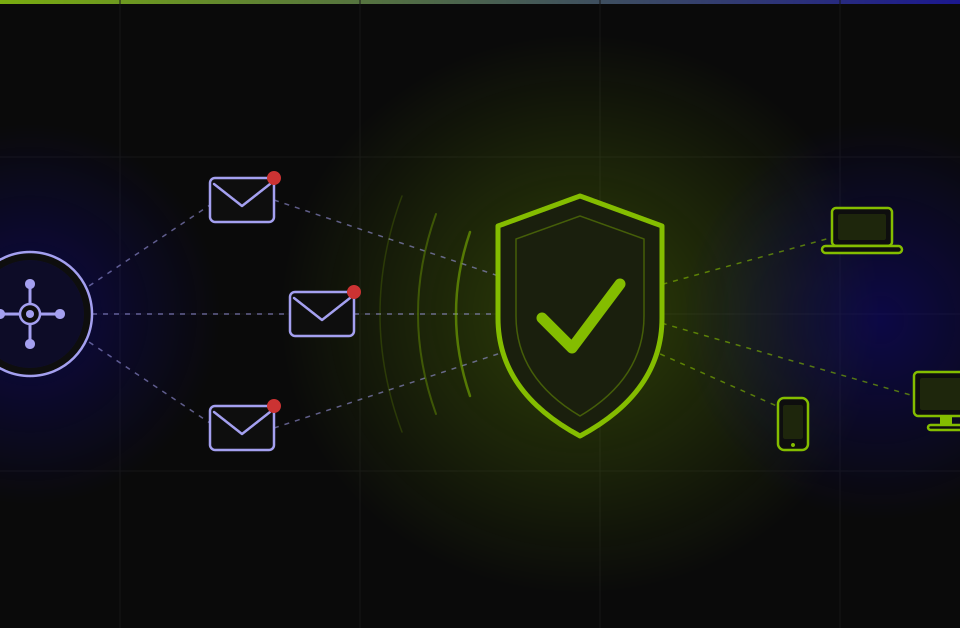
Microsoft 365 Business Premium includes Defender for Office 365 Plan 1, which adds three layers of advanced email protection on top of the basic filtering included in Business Standard. Safe Links checks every URL in an incoming email at the moment you click it, in real time, rather than just scanning links when the email first arrives. Safe Attachments opens every email attachment in an isolated, sandboxed environment and checks what it actually does before delivering it to your inbox. Anti-phishing protection uses machine learning to identify emails that are impersonating trusted contacts, suppliers, or well-known brands, and flags or blocks them before they reach your staff. Together, these three features address the most sophisticated and damaging email threats that basic spam filtering does not catch.
The Problem With “Good Enough” Email Security
Microsoft 365 Business Standard includes Exchange Online Protection, which handles the obvious stuff well. Mass spam, emails with known malicious links, basic phishing attempts that look like they were written in a hurry and sent to millions of people. Against that kind of threat, it does a reasonable job.
The problem is that the attacks causing real damage to small businesses right now aren’t the obvious ones. They arrive looking like an email from your bank, your accountant, a supplier, or a colleague. They use real company names, real logos, and in some cases they hijack a legitimate email thread that was already in progress. They’re designed to be convincing, and they’re getting better at it all the time.
Exchange Online Protection filters on known threats, which means it’s working from a list of things that have already been identified as dangerous. The most effective phishing emails are new, targeted, and specifically designed to avoid those filters. That’s the gap that advanced email protection in Business Premium fills.
Safe Links: Protection at the Moment You Click
When an email arrives, standard filtering checks links against a list of known malicious URLs. If a link isn’t on the list, it passes through. The weakness in that approach is that a link can be clean at the moment the email arrives, and then redirected to something dangerous shortly afterwards. Attackers do this deliberately, timing the swap for after the email has been delivered.
Safe Links checks the destination of a URL at the moment you click it, not when the email was scanned. If an attacker has swapped a clean link for a malicious one in the hours since delivery, Safe Links catches it at the point that actually matters. The check happens in milliseconds, so the user experience is seamless. The protection is there without any noticeable friction.
Safe Attachments: Testing Before Delivering
Standard attachment scanning checks files against a database of known malware. If the attachment doesn’t match anything in the database, it gets delivered. Novel malware, or anything specifically crafted to avoid signature detection, passes straight through.
Safe Attachments takes a different approach. Every attachment is opened in a completely isolated virtual environment and watched to see what it does. Does it try to connect to an external server? Does it attempt to execute commands or modify system files? If it behaves like malware, it gets blocked, regardless of whether it matches any known signature. The trade-off is a short delay in delivering emails with attachments, usually a matter of minutes. For most businesses, that’s barely noticeable, and the protection it provides is worth it.
Anti-Phishing Protection: Catching Impersonation
Business email compromise, where an attacker pretends to be someone you trust to get you to transfer money or share credentials, is one of the most damaging forms of cyber attack on small businesses. The emails involved are often well-written, specific, and contain nothing a basic filter would flag.
The anti-phishing protection in Defender for Office 365 uses machine learning to identify impersonation attempts. It looks at whether a sender domain is suspiciously similar to a legitimate one you deal with, whether the display name matches a known contact but the email address doesn’t, and whether the content matches patterns associated with fraud. It also lets you define specific people, such as the business owner or financial controller, who should receive enhanced protection against being impersonated in emails sent to others in your team. That last point matters, because “Hi, I’m travelling, can you process this payment urgently” is one of the most common routes to a significant financial loss, and it’s exactly what this feature is built to catch.
Why Small Businesses Are the Target
There’s a persistent assumption that sophisticated email attacks are aimed at large corporations. That assumption is wrong. Small businesses are targeted precisely because they tend to have weaker security, and because people in small teams are moving quickly and wearing multiple hats, which makes a well-timed, convincing email more likely to work.
The most common way a small business gets seriously hurt by a cyber attack is through email. Not a sophisticated network breach, but someone clicking a link that looked legitimate, or transferring money because a supplier appeared to have updated their bank details. Advanced email protection specifically addresses the mechanisms that make those attacks work, and it does it at the layer where the threat actually arrives.
FREQUENTLY ASKED QUESTIONS
Does Microsoft 365 Business Standard have any email protection at all?
Yes, Business Standard includes Exchange Online Protection, which handles high-volume spam, known malware signatures, and basic phishing attempts competently. What it doesn’t catch is sophisticated targeted attacks, time-of-click URL redirection, novel malware with no known signature, or carefully crafted impersonation emails. Those categories require the advanced protection that comes with Business Premium.
Will Safe Attachments slow down my email?
There’s a processing delay of a few minutes for emails with attachments while the sandboxing runs. In practice, most businesses find this has no meaningful impact on their working day. Bypass rules can be configured for specific trusted scenarios if needed, though this naturally reduces the protection those emails receive.
Does advanced email protection work automatically after upgrading to Business Premium?
Defender for Office 365 becomes available when you upgrade, but the policies need to be switched on and configured before the protection is active. Microsoft provides preset security policies that apply recommended settings in one step, which is the quickest way to get meaningful protection in place without needing to configure everything manually.
How do I know if Safe Attachments has caught something?
Quarantined attachments are visible in the Microsoft Defender portal, and both the recipient and administrator can be notified depending on how the policy is set up. The reporting tools in the portal also give you an ongoing picture of how many threats have been intercepted and what type they were.
Can Safe Links be disabled if users find it disruptive?
The checking process is fast enough that the vast majority of users never notice it happening. Administrators can configure trusted domains to bypass checking where it isn’t needed, such as internal links or known platforms. Turning it off entirely for business email is not generally advisable, as it removes the protection at the point where it matters most.
Does the anti-phishing protection cover internal emails as well as external ones?
The default configuration focuses on external email, which is where most threats originate. It can be configured to apply to internal emails in certain scenarios too, which is relevant if a compromised internal account is being used to send malicious content to colleagues. The Microsoft Defender admin centre gives administrators full control over the scope of each policy.
Gavin Moorhouse is the CEO of Lucid Computer Solutions, a leading Worcestershire-based IT Services business. Give them a call on 01527 908646.