- Call our jargon free hotline
- 01527 908646
- hello@lucidcomputersolutions.co.uk



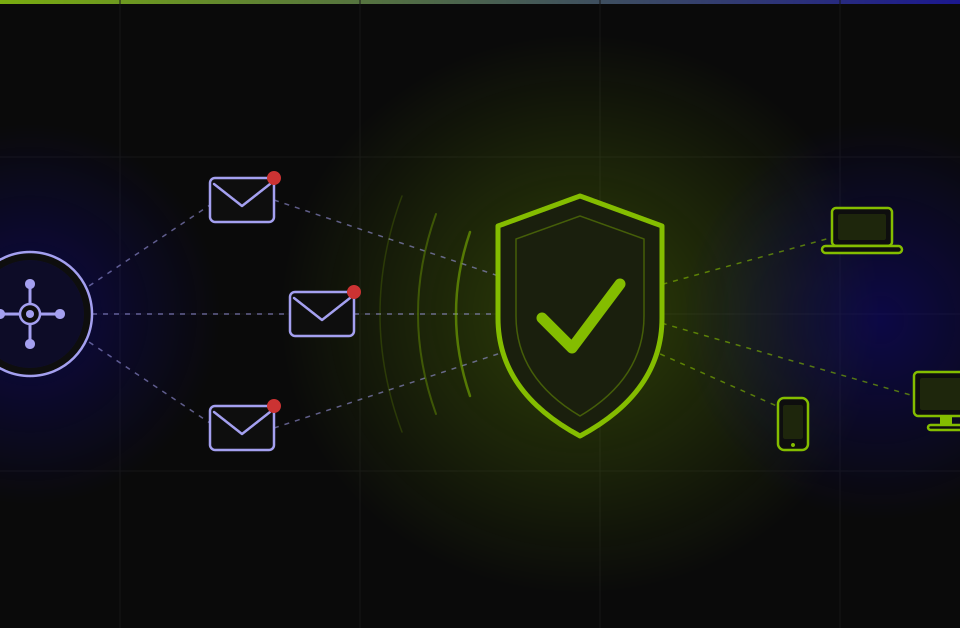
A personal daily dashboard using Zapier and Microsoft To Do works by automatically routing tasks, alerts, and messages from multiple tools — such as Zendesk, Outlook, and Slack — into a single, unified to-do list. Each time a new Zendesk ticket is created, a flagged email arrives, or an important Slack message comes in, Zapier catches it and creates a corresponding task in a dedicated Microsoft To Do list. The result is one place to start your morning: a single prioritised view of everything that needs your attention, without having to open four or five separate applications just to work out where the day should begin.
There’s a particular kind of morning that most business owners in Worcestershire and Warwickshire will recognise. You sit down at your desk — or the kitchen table, or the corner of a coffee shop in Stratford — you open your laptop, and within about thirty seconds you’re already context-switching. Email’s got four things in it that need a response. Slack’s got a red badge on it that could be urgent or could be someone sharing a meme. Your helpdesk or project management tool has notifications from last night. And somewhere in all of that, there’s probably a voicemail too. By the time you’ve opened everything and started reading, fifteen minutes have gone by, and you haven’t actually done anything yet.
It’s not a discipline problem. It’s a tool design problem. Most of the software we use for running a business was designed to be its own world — a destination you live inside, with its own notifications, its own inbox, its own interface. Which is great if you only use one tool. But nobody only uses one tool. The reality of running a small business is that you’re spread across email, messaging, customer support, project management, and probably a few things specific to your industry on top of all that. Each one of those is shouting for your attention, all at the same time, every single morning.
What I ended up building — fairly recently, actually — is something I now think of as my personal daily dashboard. It’s not complicated, it doesn’t cost much to run, and it has completely changed the way I start my working day. The tools involved are Zapier and Microsoft To Do, and if you use Microsoft 365 (which a lot of small businesses in this part of the world do), you very possibly already have To Do available and don’t even know it.
What Is Zapier, and Why Should a Small Business Owner Care?
Zapier is what’s known as an automation tool — or more specifically, a no-code integration platform. What that means in practice is that it sits in the middle of all your different software and passes information between them based on rules you set up. It connects to thousands of different apps and services, and it doesn’t require any technical knowledge or programming ability to use. You build what Zapier calls “Zaps” — essentially a trigger and an action. Something happens in one app, and as a result, something happens in another. It’s a bit like setting up a series of “if this, then that” rules for your business software.
The free plan allows you to run a certain number of automated tasks per month, and for a small business owner who just wants to build a simple daily dashboard, the free tier will probably do the job. There are paid tiers for more complex automation with more steps, but let’s not get ahead of ourselves — the basics here are genuinely powerful and genuinely accessible.
💡 What You’ll Need
A Zapier account (free to start at zapier.com), Microsoft To Do (included with Microsoft 365 or free with a Microsoft account), and accounts for whichever services you want to pull into your dashboard — in this example, Zendesk, Outlook, and Slack. Zapier supports hundreds of alternatives too, so the same approach works with Gmail, Trello, HubSpot, and many others.
The Concept: One List, Not Five Inboxes
Microsoft To Do is, on the surface, a fairly simple task management app. You can make lists, add tasks, and tick things off. It’s clean, it’s fast, and if you use Microsoft 365, it integrates nicely with Outlook. But what makes it genuinely powerful as the destination for a personal daily dashboard is that it has a feature called My Day — a curated daily view where you can pin the tasks that need your attention today, separate from everything else. It’s designed to be your starting point for the working day, and it works really well in that role.
The idea behind the dashboard is straightforward. Rather than opening Zendesk to check for new tickets, then opening Outlook to check email, then opening Slack to check messages — you instead have Zapier watching all of those things on your behalf, and whenever something important happens in any of them, it creates a task in a dedicated Microsoft To Do list. You start your morning by opening that one list. Everything that needs your attention is there. You decide what order to tackle things in, and then you go and do them.
How to Set It Up: Connecting Zendesk, Email, and Slack to Microsoft To Do
The setup process in Zapier is genuinely approachable, even if you’ve never used automation tools before. When you log into Zapier and create a new Zap, you’re prompted to choose a trigger app and a trigger event — so for the Zendesk integration, the trigger would be “New Ticket in Zendesk.” Zapier then asks you to connect your Zendesk account, and from that point it walks you through choosing which tickets should trigger the automation (all of them, or just those meeting certain criteria) before asking you what action to take. You choose Microsoft To Do as the action app, select “Create Task,” connect your Microsoft account, and tell it which list the task should land in. Give the task a descriptive name — something like “Zendesk: [Ticket Subject]” works well — and you’re done. The whole setup for one Zap takes around ten minutes if you’re doing it for the first time.
For the email integration, the trigger in Zapier is an email being flagged in Outlook. This means your dashboard doesn’t fill up with every email you receive — it only captures the ones you’ve actively marked as needing attention. That distinction matters because the whole point of the dashboard is to be a considered, prioritised list, not just another inbox. When you flag an email in Outlook because it needs a reply or an action, Zapier picks that up and drops a corresponding task into your To Do dashboard list. The task name can include the email subject and the sender, so you know at a glance what you’re dealing with.
The Slack integration follows the same pattern. In Slack, you can star or save any message, and Zapier treats a newly starred message as a trigger. So when a client sends you something in Slack that needs a response, or a colleague flags something important, you star it, and within a minute or two it appears as a task in your dashboard. You’re not relying on your memory to come back to it later, and you’re not leaving Slack open all day with a background anxiety about missing something. Zapier’s handling it.
What This Actually Looks Like in Practice
My morning now starts with opening Microsoft To Do. Not Zendesk, not Outlook, not Slack — To Do. I can see at a glance whether I’ve got new Zendesk tasks waiting, whether any emails were flagged yesterday afternoon that need a response today, and whether anything came up in Slack that I starred but didn’t action. The task names are descriptive enough that I don’t need to open the original app just to understand what something is. I can look down the list, quickly work out what’s urgent and what can wait, and then open things in the right order rather than in the order that the notifications happened to arrive.
It sounds like a small thing, but the effect on the feeling of control at the start of the day is quite significant. Rather than the slightly frantic scan-everything-at-once approach that most mornings used to involve, there’s a calm, single view that says: here’s what needs your attention today. You can pin the most important ones to the My Day view in To Do, mark the rest for later, and actually start your working day with a plan rather than a mild sense of overwhelm.
It also helps with the end of the day. When a task appears in To Do because a Zendesk ticket has been raised or an email has been flagged, you’ve got a record of what came in during the day. Ticking things off as you go means you can end the afternoon with a clear view of what’s been handled and what, if anything, needs to carry over to tomorrow. For small business owners who sometimes feel like the day just happened to them rather than being something they actively managed, that level of visibility is genuinely valuable.
This Isn’t Just for IT People — It’s for Anyone Running a Business
One of the things I find most satisfying about this setup is how accessible it is. You don’t need to know how to write code. You don’t need to understand APIs or webhooks or any of the technical infrastructure that sits behind Zapier. The interface guides you through each step, the triggers and actions are described in plain language, and within an hour of first opening Zapier you could have a working dashboard pulling from three different tools. For business owners in Worcestershire and Warwickshire who are running everything themselves — or with a very small team where everyone wears multiple hats — a system like this can feel like hiring a very efficient assistant who quietly organises your to-do list in the background while you’re getting on with other things.
It’s also worth noting that the tools you pull into your dashboard can be whatever makes sense for your business. If you don’t use Zendesk, maybe you’re using Trello or Asana or a different CRM — Zapier almost certainly connects to it. If you use Gmail rather than Outlook, the same logic applies. The principle is the same regardless of the specific tools: pick your best-in-class destination (Microsoft To Do is excellent for this, but alternatives like Todoist or Notion also work), and then use Zapier to funnel the important stuff from everywhere else into that one place. One list. One starting point. One view of your day.
Give it a go. It genuinely does make mornings better.
Frequently Asked Questions
Is Zapier free to use for a small business?
Zapier has a free plan that allows you to run a limited number of automated tasks (called “tasks”) per month and build simple two-step Zaps. For a basic personal daily dashboard pulling from two or three sources into Microsoft To Do, the free plan will often be sufficient, particularly if the volume of triggers isn’t especially high. Paid plans start from around £20 per month and unlock multi-step Zaps, faster automation speeds, and higher task volumes. It’s worth starting on the free plan to test whether the setup works for your workflow before committing to anything.
Do I need Microsoft 365 to use Microsoft To Do?
No — Microsoft To Do is available for free with any Microsoft account, including a personal Outlook.com account. If you do have Microsoft 365, To Do integrates particularly well with Outlook’s task and flagging system, which makes the email integration described in this article more seamless. But the core functionality — creating lists, adding tasks via Zapier, and using the My Day view — works on the free version too.
Can I use this approach with tools other than Zendesk, Outlook, and Slack?
Absolutely. Zapier connects to thousands of apps, so the same principle applies regardless of which tools your business uses. Common alternatives include Gmail instead of Outlook, HubSpot or Pipedrive instead of Zendesk, Teams instead of Slack, or Trello and Asana for project management. The destination doesn’t have to be Microsoft To Do either — Todoist, Notion, and ClickUp all have Zapier integrations and work well as a central dashboard.
Won’t my To Do list just fill up with noise if everything goes in there automatically?
This is a really fair concern, and it’s why the design of your triggers matters. The Outlook integration, for example, is set to only trigger when an email is flagged — not for every email you receive. The Slack integration triggers only on starred messages, not every message. You’re using your own judgment in real time (by flagging or starring) to decide what enters the dashboard, rather than automating every incoming item. Zendesk tickets are perhaps the most automatic, but you can filter those by status, assignee, or priority if you only want a subset to appear. The goal is a curated daily list, not a mirror of everything.
How long does it take to set up this system?
Realistically, allow an hour to two hours for an initial setup if you’re new to Zapier. Creating each Zap takes around ten to fifteen minutes once you’re familiar with the interface, and the first one always takes a little longer while you’re finding your way around. After a day or two of use, most people find they want to tweak a few things — adjusting the task name format, adding a filter, or connecting an additional source — and that kind of iteration is part of the process of finding what works for your specific workflow.
Is my data safe passing through Zapier?
Zapier is a well-established and reputable platform used by millions of businesses worldwide. It uses encrypted connections (HTTPS/TLS) when transferring data between apps and holds various security certifications. That said, it’s worth being mindful of what data you’re routing through it — for most small business automation tasks like task titles and notification summaries, the risk is minimal. If your business handles particularly sensitive data (healthcare records, legal documents, and so on), it’s worth reviewing Zapier’s data processing documentation and considering whether specific workflows need additional thought.
Gavin Moorhouse is the CEO of Lucid Computer Solutions, a leading Worcestershire-based IT Services business. Give them a call on 01527 908646.